Installing
Windows
Download Windows 10 and 11 installer
Once downloaded, double-click on the installer to start the installation.
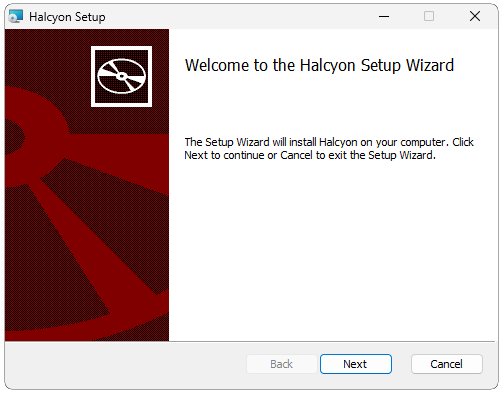
Click next.
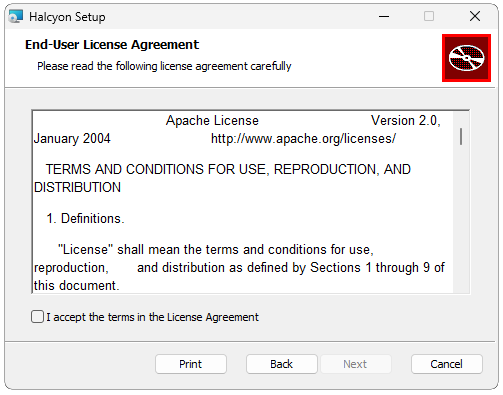
Read and then accept the license agreement and then click next.

Choose the location where you want the installer to put Halcyon and its associated files and then click next.
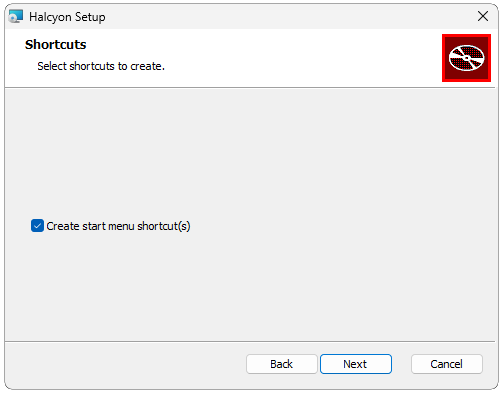
Decide if you would like an icon for Halcyon created and then click next.
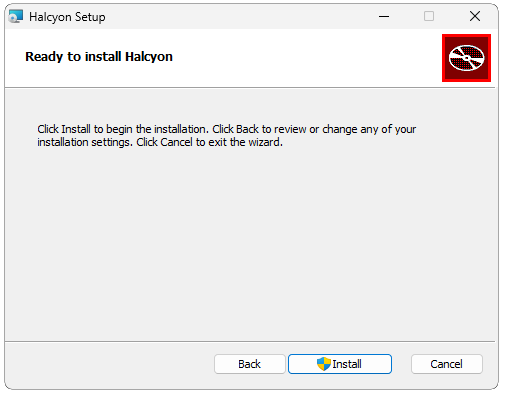
Click Install.

Click Finish. Congratulations! You’ve installed Halcyon.
You can launch Halcyon by double-clicking on the program icon that is created.

Very likely, when you start Halcyon by double-clicking the Halcyon program icon, you will get this screen. It’s just Windows letting you know Halcyon needs to access the network. Click Allow.

When you launch Halcyon, it will show this windows where it will put, hopefully, informative messages.
When the Halcyon log screen looks like the above, you should be able to open your web browser and navigate to the following address: http://localhost:8888
You should see the login screen.
MacOSX
The Mac dmg file contains the Halcyon application. Copy this file to where you want Halcyon to create its associated files. From a terminal window, switch to the folder yo created and put Halcyon (the file contained within dmg file.
cd Halcyon (the folder you put Halcyon into)
Halcyon.app/Contents/MacOS/Halcyon
At this point, you will see Halcyon start up messages be displayed. Once it is up and runing, you can open a browser and navigate to http://localhost:8888 to get the login screen.
Linux
Ubuntu
Download Ubuntu / Debian deb package
You can install this debian package on Ubuntu or Debian Linux using the following command
sudo apt install ./{deb package name}
Redhat
You can install this RPM package with the following command Download RedHat rpm package
sudo rpm -i ./{rpm package name}
Once you have either the DEB or RPM package installed depending on your operating system, create a folder where you want Halcyon’s data files to be. Once you switch into this folder, just type ‘Halcyon’
mkdir halcyon
cd halcyon
Halcyon
Halcyon will start to load up and create any files it needs. You will be able to tailor your installation after the initial startup.
Java Jar
Download Java Jar version (required JDK21)
Running the java jar version will require a working JDK21 installation, either OpenJDK or GraalVM
Put your jar file in the folder where you want Halcyon to create its data files. Then switch into that folder and execute the jar.
mkdir halcyon
mv {downloaded jar file} halcyon
cd halcyon
java --enable-preview -Xmx5G -Xms5G --add-opens=java.base/java.nio=ALL-UNNAMED -jar {Halcyon jar file name}
The -Xmx and -Xms parameters control the maximum and starting RAM than the JDK will allocate for this process. The above reserves 5GB of RAM for Halcyon to run, but keep in mind, you need to have that much RAM or more in order for it to work!