Image Annotation Toolbar
Table of Contents
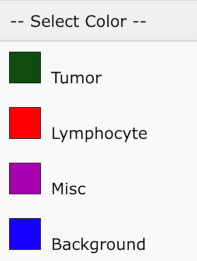
Color/Cancer Type Dropdown
Allows you to select the color / cancer-type for your brush. Choose the desired color from the dropdown before drawing or editing annotations.
Free-Drawing Brush
A flexible brush for free-hand drawing. Simply click and hold the mouse button to start drawing, then release to finish.

Rectangle Brush
Creates a rectangle by clicking and dragging. Release the mouse button to complete the rectangle.

Ellipse Brush
Draws an ellipse by clicking and dragging. Adjust the size and shape of the ellipse by dragging before releasing the mouse button.

Polygon Brush
Click to create points and define the shape of the polygon. Double-click to complete the polygon.

Hollow Brush + Size Slider
Draws a hollow shape. Use the size slider to adjust the thickness of the hollow shape.

Grid Tool
Draws a grid on the screen, allowing you to color individual squares to indicate specific cancer types.

Edit Polygon
Provides edit handles on polygons, allowing you to reshape or delete them.

Edit Label
View or edit the label associated with an annotation. Useful for updating cancer types or other metadata.

Get Area and Circumference
Calculates and displays the area and circumference of selected shapes or polygons.

Ruler
Measures distances in pixels on the image. Click to start measuring and drag to the endpoint to see the pixel distance.

Download PNG Snapshot
Downloads a snapshot of the current view as a PNG file, preserving your annotations.

Crosshairs Toggle
Toggles crosshairs to help you find the center of the current view.

Save
Saves the current annotations, ensuring all changes are preserved for future use.

List Annotation Sets
Displays a list of all annotation sets, allowing you to update labels and toggle visibility by checking or unchecking boxes.

Lock Rotation
Locks the rotation of the image, preventing it from rotating while zooming.

Re-orient View
Resets the view to its original orientation, as it was when the session began.

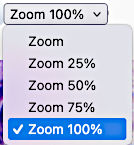
Zoom Dropdown
Allows you to zoom in or out of the image by selecting a percentage from the dropdown. Use 100% for the best view.
Brightness and Contrast Sliders
Adjust the brightness and contrast of the image to enhance visibility of details.

Reset Brightness and Contrast Button
Resets the brightness and contrast settings to their default values.
